


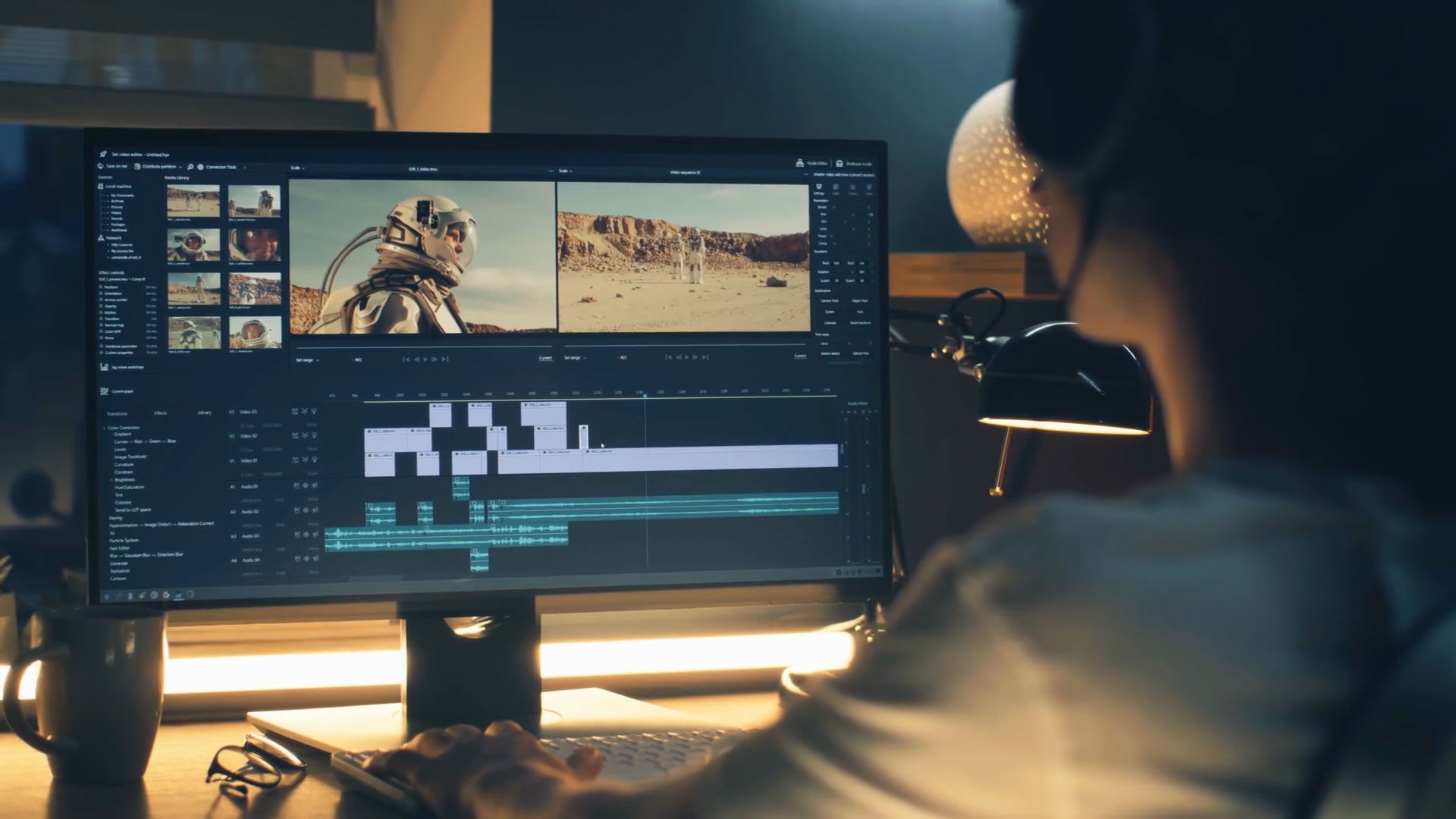
Editing tools are the backbone of modern content creation, directly influencing how engaging your stories are and how smoothly your workflow runs. Finding the right software can be a game-changer, whether you need to quickly cut trending short-form reels or produce cinematic, long-form videos for your channel.
The Heavy Tools
Adobe Premiere Pro

You’ve likely encountered Adobe Premiere Pro if you’re working seriously with video. It’s one of the most industry-standard editing platforms, trusted by professionals across film, television, and digital media. Its integration with other Adobe apps like After Effects and Audition gives you unmatched flexibility in post-production workflows.
Performance scales well with high-resolution footage, especially when paired with a powerful machine. The timeline is highly customizable, letting you shape the interface around your editing style. Color grading, audio syncing, and multi-cam editing are handled with precision, making complex projects manageable.
Subscription pricing through Adobe Creative Cloud can add up over time, but the continuous updates ensure you’re always getting new features. With strong third-party plugin support and broad format compatibility, Premiere Pro remains a top-tier choice for creators who demand control and consistency.
DaVinci Resolve
DaVinci Resolve surprises many with its depth, especially considering the free version offers professional-grade tools in editing, color, audio, and visual effects. You get access to the same color correction engine used in Hollywood films, making it a standout for creators focused on cinematic quality.
The interface separates editing, color, Fusion (VFX), and Fairlight (audio) into distinct workspaces, helping you stay focused during each phase. Even on complex timelines, the software remains stable and responsive, especially with optimized hardware. Color grading capabilities are unmatched in this price range-free or paid.
Blackmagic Design releases frequent updates, often adding features previously exclusive to high-end studios. The paid Studio version unlocks collaboration tools and advanced noise reduction, but most indie creators find the free version more than sufficient. It’s rare to find this level of power without recurring fees.
What truly sets DaVinci Resolve apart is its all-in-one nature-no need to export between programs for color or sound. You can finish an entire project without leaving the app, reducing errors and saving time. This integration makes it a dangerously efficient tool, especially for solo editors aiming for broadcast-level results.
Final Cut Pro
Final Cut Pro delivers a smooth, optimized experience exclusively for Mac users, combining speed with an intuitive layout. Its magnetic timeline reduces clutter and simplifies editing, letting you focus on storytelling instead of technical hurdles. Performance on Apple Silicon chips is exceptional, handling 4K and even 8K footage with minimal lag.
You’ll appreciate how well it integrates with other Apple devices and services-AirDrop, Photos, and iCloud sync seamlessly into your workflow. Background rendering and automatic saving prevent data loss, while advanced features like compound clips and roles-based audio offer depth when you need it.
Priced as a one-time purchase, it’s a cost-effective option compared to subscription models. Updates are free, and the active developer community provides templates and plugins. For Mac-based creators, Final Cut Pro strikes a perfect balance between power and simplicity.
Its ecosystem lock-in means you’re tied to macOS, but if you’re already in Apple’s world, the transition feels natural. The magnetic timeline may take adjustment if you’re used to traditional tracks, but once mastered, it speeds up editing significantly. This is a long-term investment that keeps delivering value without monthly fees.
The Portable Blade
Editing on the go doesn’t mean sacrificing quality, especially when your mobile device doubles as a full-featured studio. With powerful apps designed specifically for creators who shoot, edit, and publish from a single device, the line between desktop and mobile workflows continues to blur. You now have access to professional-grade tools that fit in your pocket, letting you cut, color, and export high-resolution videos without needing a laptop.
These portable editors offer intuitive interfaces without stripping away advanced features. You can layer timelines, adjust keyframes, and apply LUTs just as you would on a traditional workstation. The real power lies in how quickly you can respond to content demands-turning raw clips into polished pieces in record time. Your audience won’t see the device you used, only the precision and polish of your final product.
As platforms favor faster turnarounds and authentic, in-the-moment storytelling, having a reliable mobile editor becomes a competitive advantage. Whether you’re vlogging from a remote location or editing B-roll between takes, your ability to deliver consistently hinges on tools that keep pace with your creativity. The portable blade isn’t just convenient-it’s transformative.
LumaFusion

LumaFusion sets the gold standard for mobile video editing, offering a multi-track timeline that rivals desktop software. You’ll find precise control over audio levels, video effects, and transitions, all within a clean, responsive interface. Its support for 4K exports and external storage makes it ideal for professional creators who refuse to compromise.
Color grading tools let you apply adjustments with curves and color wheels, giving you cinematic control directly from your iPad. You can even import project files from other editors, streamlining collaboration across devices. The app’s stability during long editing sessions ensures you won’t lose progress unexpectedly.
With regular updates and strong community support, LumaFusion continues to expand its capabilities. You’re not just buying an app-you’re investing in a platform that evolves with your needs. For serious creators, it’s the most powerful mobile editor available today.
CapCut
CapCut delivers a surprisingly deep feature set wrapped in a user-friendly design, making it a top choice for fast-paced content creation. You can access advanced tools like keyframe animation, chroma key, and audio ducking without navigating complex menus. Its AI-powered effects help automate tedious tasks, letting you focus on storytelling.
Templates and trending effects sync across platforms, so you can quickly adapt to viral formats on TikTok, Instagram, or YouTube Shorts. You’ll save time while maintaining a polished look, thanks to smart alignment and auto-captions that are highly accurate and customizable.
The app supports high-resolution exports and works smoothly on both iOS and Android devices. Even with heavy timelines, performance remains stable, which is rare for free editing tools. Its blend of speed, intelligence, and accessibility makes CapCut a must-have for mobile-first creators.
CapCut’s cloud sync feature lets you start a project on your phone and finish it on your desktop, eliminating friction between devices. You can also collaborate with team members by sharing project links, a feature typically found in premium software. This level of integration, combined with zero cost for core features, makes CapCut not just convenient-but exceptionally strategic for growing channels.
The Modern Shortcut
Editing video content no longer demands hours of timeline scrubbing or advanced technical skills. Today’s creators have access to intuitive tools that streamline production with smart features and AI-powered automation. What’s the Best Video Editing Software for Creators? might be your next big question – and the answer increasingly points toward platforms that blend simplicity with powerful output. These modern solutions are redefining what’s possible, especially for solo creators and small teams working under tight deadlines.
Speed, accuracy, and creative control are now within reach of anyone with a laptop and an idea. The best tools don’t just cut time – they reduce the mental load of editing by automating repetitive tasks. You can now generate voiceovers from text, remove filler words automatically, and even edit video by editing the transcript. This shift means your focus stays on storytelling, not software mechanics. The modern shortcut isn’t about cutting corners – it’s about working smarter.
Descript
Descript treats video editing like word processing, letting you edit audio and video by simply deleting text in a transcript. You can remove “ums” and “ahs” with one click, and the timeline adjusts automatically – a game-changing feature for podcasters and vloggers. This text-based approach makes editing feel intuitive, especially if you’re more comfortable writing than using traditional software.
Cloning your voice with Overdub allows you to generate new spoken lines without re-recording, saving hours of studio time. You retain full control over tone and pacing, and the AI sounds remarkably natural. Mistakes in delivery no longer mean starting over – just type the correction and let Descript speak it for you.
Its screen recording and multi-track editing tools round out a powerful suite for creators producing tutorials or talking-head videos. While cloud-based processing can slow things down occasionally, the trade-off in usability is worth it. Descript is ideal when you need to publish fast without sacrificing quality.
Canva Video
Canva Video brings drag-and-drop simplicity to video creation, making it accessible even if you’ve never touched editing software. You can animate text, apply transitions, and layer graphics with ease using pre-built templates tailored for social media. This visual-first approach lets you focus on design without wrestling with complex timelines.
Stock footage, music, and voiceover tools are built directly into the platform, eliminating the need to switch apps. You can resize videos for different platforms in one click – a huge time-saver for cross-platform content. Collaboration features also allow team members to comment or edit in real time, streamlining group projects.
While it lacks the precision of professional NLEs, Canva Video excels at speed and consistency for branded content. It’s perfect when you need polished videos fast, especially for marketing or educational clips.
Canva Video continues to expand its capabilities, recently adding green screen effects, AI image generation, and voice cloning – all within the same browser tab. You can now produce a complete, professional-looking video without downloading a single program. Its integration with Google Drive, Dropbox, and social platforms makes publishing seamless. For creators prioritizing efficiency and design cohesion, Canva Video is more than a tool – it’s a complete production environment that fits into any workflow.
The Moving Image
Creating dynamic visuals is where your storytelling truly comes to life, and the right tools can transform static clips into cinematic experiences. You’ll want software that blends precision with creative freedom, allowing you to shape motion in ways that captivate your audience. For a curated list of powerful solutions, check out this guide to 11 Tools for Making and Editing Videos to expand your editing arsenal.
After Effects
Adobe After Effects remains a cornerstone for video creators who work with motion graphics and visual effects. You can animate text, create complex compositions, and apply keyframe-driven transformations that bring depth to your projects. Its integration with other Adobe apps streamlines your workflow, letting you move seamlessly between Premiere Pro and After Effects. The real power lies in its plugin ecosystem, which expands capabilities with tools for particle effects, 3D rendering, and color grading.
Templates and presets save you hours when building intros, lower thirds, or transitions. You’re not limited to pre-built assets-customization is deep and flexible. Even beginners can achieve professional results with guided tutorials and community-shared project files. The learning curve is steep, but persistence pays off in creative control.
Cloud-based collaboration features now allow teams to share assets and feedback in real time. You can preview changes across devices, ensuring consistency in delivery. Performance improvements in recent versions reduce render times significantly, making After Effects more efficient than ever for demanding projects.
Apple Motion
Apple Motion offers a real-time design environment tailored for creators in the macOS ecosystem. You can build fluid animations, titles, and effects that integrate directly with Final Cut Pro. Its parametric controls let you tweak motion behaviors without venturing into complex keyframing. The instant playback feature lets you see changes live, speeding up iteration and creative decision-making.
Behaviors simplify animation by applying realistic motion like gravity or follow-through with a click. You’re not locked into manual timing-these dynamic tools adapt to your clip’s duration. Custom templates export seamlessly to Final Cut Pro, making it ideal for editors who need reusable, high-quality assets.
Particle emitters and replicators open creative doors for abstract visuals and intricate patterns. You can generate complex effects without third-party plugins. The interface stays intuitive, even when working on layered compositions.
One standout feature of Apple Motion is its ability to handle 360° video and stereo effects natively. You can design immersive titles and animations that respond to viewer perspective. This support puts you ahead when creating content for VR or spatial platforms. Performance is optimized for Apple Silicon, delivering smooth playback even with heavy effects stacks. If you’re embedded in the Apple ecosystem, Motion isn’t just an option-it’s a necessity.
The Sound of the Work
Adobe Audition
You’ll find precision editing at your fingertips with Adobe Audition, a digital audio workstation built for creators who demand control. Its multitrack timeline lets you layer voiceovers, music, and sound effects with surgical accuracy, while the imperative spectral frequency display helps you isolate and remove unwanted background noise. The integration with Premiere Pro is seamless, allowing you to send clips directly to Audition for audio refinement and have changes update automatically in your video timeline.
Every edit benefits from Audition’s powerful restoration tools, including automatic speech alignment and noise reduction presets that adapt to your recording environment. You can visually identify clicks, hums, or plosives and correct them without affecting vocal clarity. Real-time previewing of effects means you hear changes instantly, reducing guesswork and speeding up your workflow.
What sets Audition apart is its balance between professional-grade features and an accessible interface. You don’t need an audio engineering degree to use its adaptive noise reduction or vocal enhancer. For content creators who edit both video and audio in tandem, it’s one of the most efficient tools to ensure your message is heard clearly.
iZotope RX
When your audio has deep flaws that standard tools can’t fix, iZotope RX steps in as the repair specialist. You’ll use its standalone editor or plugin version to tackle issues like clipping, wind noise, or inconsistent room tone that distract from your content. RX’s De-noise and De-hum modules are exceptionally accurate, removing background interference while preserving the natural warmth of the human voice.
Its spectrogram view gives you a visual map of audio problems, letting you paint over glitches or frequency spikes with pixel-level control. You can restore dialogue recorded in less-than-ideal conditions-something every creator eventually faces. The Dialogue Isolate tool is a game-changer, pulling speech forward even in noisy environments without introducing robotic artifacts.
Creators working with interviews, podcasts, or field recordings will find RX indispensable. It doesn’t just clean audio-it rescues it. With machine learning driving many of its modules, RX adapts to your source material, offering results that feel transparent, not processed.
For advanced users, iZotope RX Advanced includes tools like Music Rebalance, which lets you adjust the levels of vocals, bass, and percussion in a mixed track-ideal when you need to repurpose existing music without access to stems. This level of control is rare and can save hours of re-recording or licensing new tracks. Whether you’re fixing a single problematic clip or mastering an entire series, RX delivers professional results with remarkable consistency.
The Proper Workspace
Creating high-quality video content starts long before you press record-it begins with the environment where you edit. Your workspace directly impacts efficiency, accuracy, and creative flow. A well-organized setup reduces fatigue and helps maintain focus during long editing sessions. You’ll want to invest in equipment that supports precision and comfort, especially if you’re producing content regularly. For a curated list of imperative tools to enhance your workflow, check out this guide to the 20 Best Content Creation Tools: Planning, Video, Audio … to find complementary gear that fits your production style.
Color Accurate Monitors
Color accuracy defines how faithfully your monitor reproduces the true tones of your footage. Without it, skin tones may look unnatural or skies appear oversaturated when viewed on other devices. Professional-grade monitors with calibrated color profiles ensure what you see is what your audience gets. This consistency prevents costly revisions and builds trust in your visual storytelling. Look for displays with 100% sRGB or DCI-P3 coverage and hardware calibration support for best results.
Editing on a standard laptop screen often leads to misleading color representation. These panels prioritize brightness over accuracy, which distorts contrast and hue balance. A dedicated editing monitor eliminates guesswork, especially in dimly lit environments. You’ll catch subtle grading errors early, saving time during final export. Brands like BenQ and Eizo specialize in models built specifically for creative professionals.
Consider ambient lighting when setting up your display. Natural light changes throughout the day can alter perceived colors, so use consistent, neutral lighting. Position your monitor to avoid glare and reflections. Regular calibration maintains long-term accuracy, ensuring your edits remain reliable across projects and seasons.
Mechanical Keyboards
Typing efficiency matters when labeling clips, writing scripts, or navigating complex software shortcuts. Mechanical keyboards offer tactile feedback that membrane models can’t match. Each keystroke registers with precision, reducing errors during fast-paced editing. You’ll notice improved speed and comfort after switching, especially during extended sessions. Choose switches based on your preference-linear for smooth presses, tactile for feedback, or clicky for audible confirmation.
Customization is another strong advantage of mechanical setups. Keycaps can be swapped for ergonomic layouts or color-coded functions relevant to your editing software. Some models support programmable keys, letting you assign export commands or timeline jumps. This level of control streamlines repetitive tasks and keeps your hands on the keyboard instead of searching through menus.
Durability sets mechanical keyboards apart. They’re built to last tens of millions of keystrokes, far outliving standard peripherals. While the initial cost is higher, the long-term value is clear. Look for reputable brands like Ducky, Keychron, or Logitech with solid build quality and reliable switch options.
Many video editors overlook how much typing they do until discomfort sets in. A mechanical keyboard reduces finger strain and supports better hand posture. You’ll maintain focus longer without fatigue interrupting your rhythm. Pair it with an ergonomic mouse and wrist rest for a truly optimized editing station.
To wrap up
Conclusively, you now have access to a range of editing tools that match different skill levels, budgets, and creative goals. Whether you’re assembling quick social clips or crafting cinematic YouTube videos, tools like Adobe Premiere Pro, DaVinci Resolve, and Final Cut Pro offer precision and professional-grade features. Each platform supports advanced color grading, audio mixing, and effects, giving you full control over your storytelling.
You benefit from intuitive interfaces in apps like CapCut and iMovie when speed and simplicity matter. These tools reduce editing time without sacrificing quality, ideal for creators posting daily or managing multiple platforms. Cloud-based options such as WeVideo also let you edit across devices, ensuring flexibility when working on the move.
Your choice depends on your workflow, hardware, and content style. Testing free versions helps you assess performance before committing. With the right tool, your videos gain polish, clarity, and impact-elements that keep audiences engaged and coming back.
FAQ
Q: What video editing software is best for beginners who want to create high-quality content?
A: DaVinci Resolve is a strong choice for new creators because it offers a free version with professional-grade color correction, visual effects, and audio post-production tools. The interface has a learning curve, but many beginner tutorials are available online. Users can start with the Cut page, designed for faster editing, and grow into more advanced features over time. It runs on Windows, macOS, and Linux, making it accessible across different systems.
Q: Which editing tool works best for YouTubers who need fast turnaround times?
A: Adobe Premiere Pro is widely used by YouTubers for its speed and integration with other Adobe apps like After Effects and Audition. Templates, keyboard shortcuts, and auto-reframe features help creators edit videos quickly without sacrificing quality. The software supports a wide range of file formats and works smoothly with footage from smartphones, DSLRs, and action cameras. Cloud collaboration also allows teams to share projects and review edits in real time.
Q: Are there any mobile apps that offer powerful editing features for on-the-go content creation?
A: CapCut, available on iOS and Android, delivers advanced editing tools in a mobile format. It includes multi-layer timelines, keyframe animation, speed controls, and a library of music and effects. The app is popular with TikTok and Instagram creators who shoot and edit entirely on their phones. Its AI-powered features like auto-captions and background removal save time and improve accessibility without requiring desktop software.